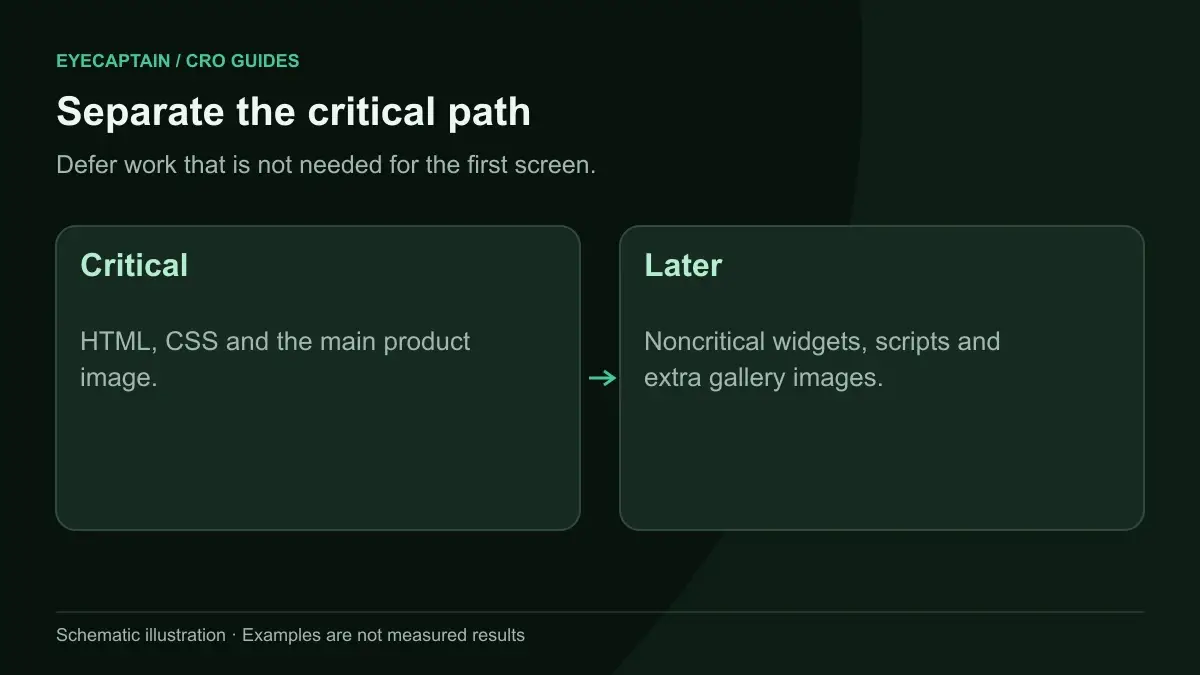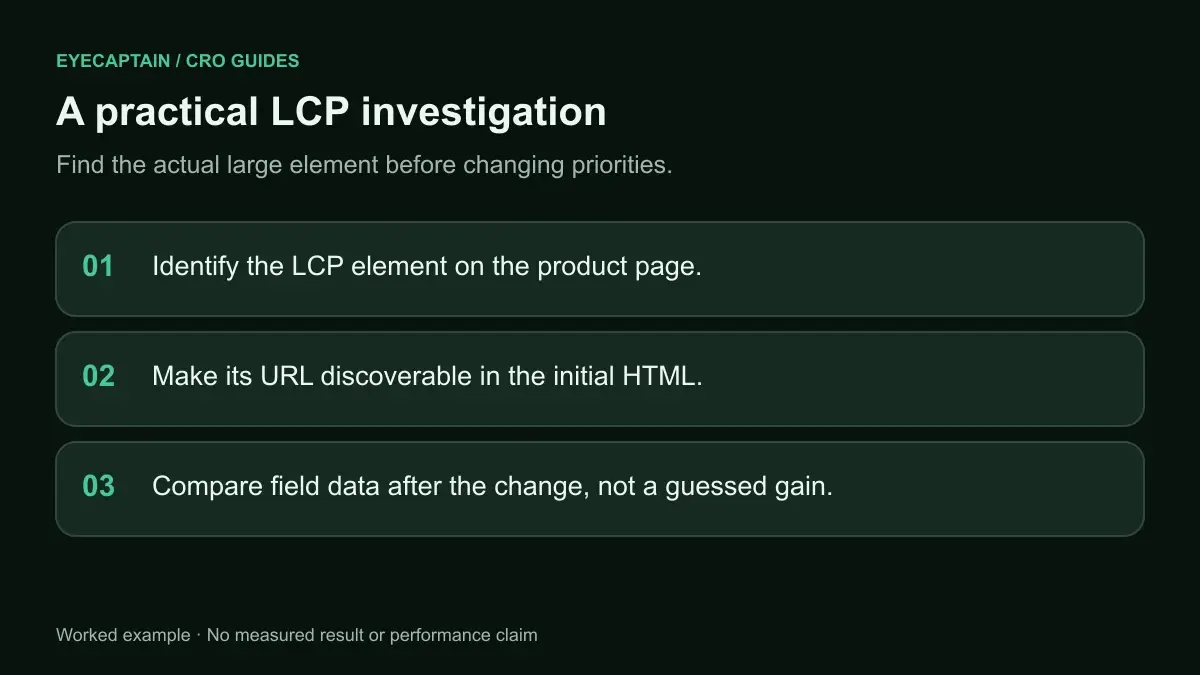


To improve LCP on a product page, make the main product image load first and fast: never lazy-load it, give it fetchpriority="high", serve a correctly sized modern format, and put it in the initial HTML instead of a JavaScript slider. Then remove render-blocking fonts and scripts until Largest Contentful Paint is 2.5 seconds or less.
Largest Contentful Paint (LCP) measures when the biggest visible element in the viewport finishes rendering. On a product page that is almost always the main product photo, or occasionally the product title if the image is small. Google's Core Web Vitals guidance rates LCP of 2.5 seconds or less as good, over 4 seconds as poor, and assesses it at the 75th percentile of real page loads. Shoppers feel it as the moment the page looks ready.
What is a good LCP score for a product page?
A good LCP is 2.5 seconds or less for at least 75 percent of visits, measured separately on mobile and desktop, according to Google's Core Web Vitals thresholds. Between 2.5 and 4 seconds "needs improvement". Above 4 seconds is "poor".
Two details matter for stores. First, the score that counts in Google Search Console comes from real Chrome users (field data), not from a single lab test. A page can pass in Lighthouse on fast office Wi-Fi and fail for shoppers on mobile networks. Second, product page templates share one LCP problem across thousands of URLs, so one template fix can move the whole group.
What usually makes LCP slow on a product page?
On product pages, slow LCP usually comes from five causes. Most stores have two or three at once.
| Cause | How to spot it | Fix |
|---|---|---|
| Main image lazy-loaded | loading="lazy" on the first gallery image | Remove lazy loading from the first image only |
| Image discovered late | Image injected by JavaScript or set as a CSS background | Use a plain img tag in the server HTML, or preload it |
| Oversized image file | Full-resolution JPEG or PNG sent to phones | Use srcset and sizes, WebP or AVIF, sensible compression |
| Slider or gallery script | Image hidden until a carousel library initializes | Render the first slide in HTML, visible by default |
| Render-blocking CSS, fonts and third-party scripts | Long gap between image download and paint | Defer non-critical scripts, inline critical CSS, fix font loading |
Slow server response also hurts, especially on uncached pages with heavy apps or plugins. On hosted platforms you have less control over the server, so the four front-end causes are usually where the gains are.

How do you find which element is the LCP?
Run the product page through PageSpeed Insights. It shows field data from the Chrome User Experience Report when your page has enough traffic, plus a lab test that names the LCP element. Chrome DevTools' Performance panel shows the same element and splits LCP into four parts, described in Google's web.dev documentation:
- Time to first byte: how long the server takes to start sending HTML.
- Resource load delay: the gap between the HTML arriving and the browser starting to download the image.
- Resource load duration: how long the image download takes.
- Element render delay: the gap between the image arriving and it appearing on screen.
This breakdown tells you which fix to try first. A large load delay points to discovery problems. A large load duration points to file size. A large render delay points to blocking scripts, fonts or sliders.
How do you make the hero product image load faster?
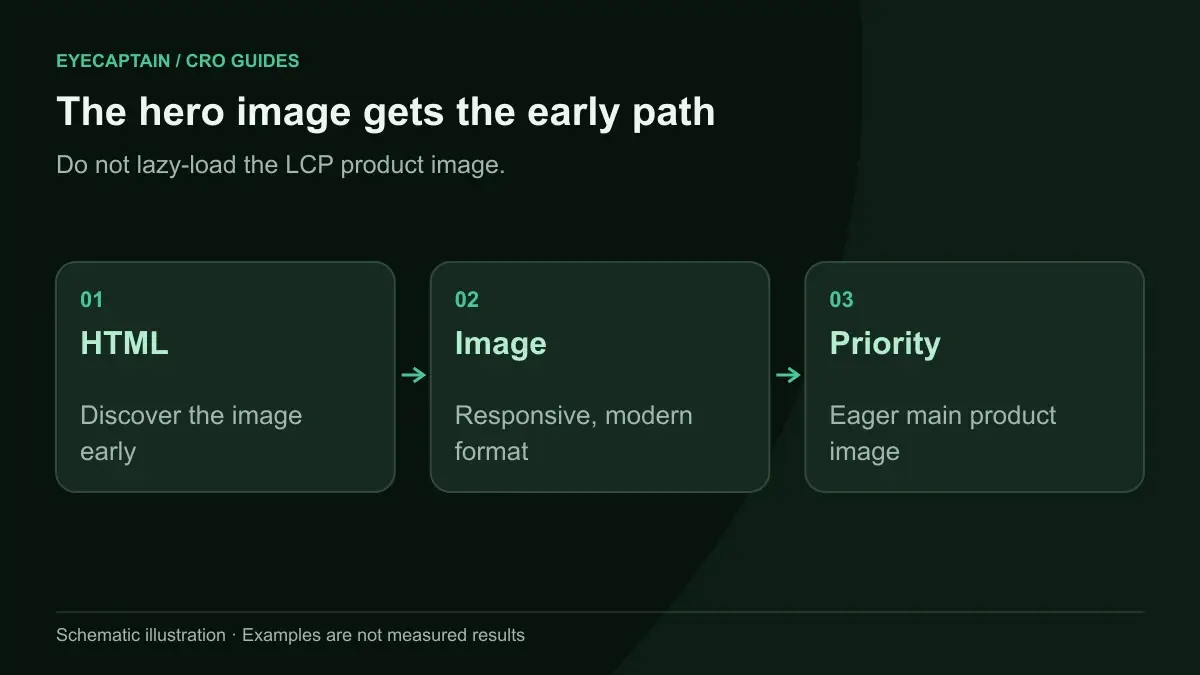
Make the browser find the image immediately, download it early, and download as few bytes as possible. Apply these in order:
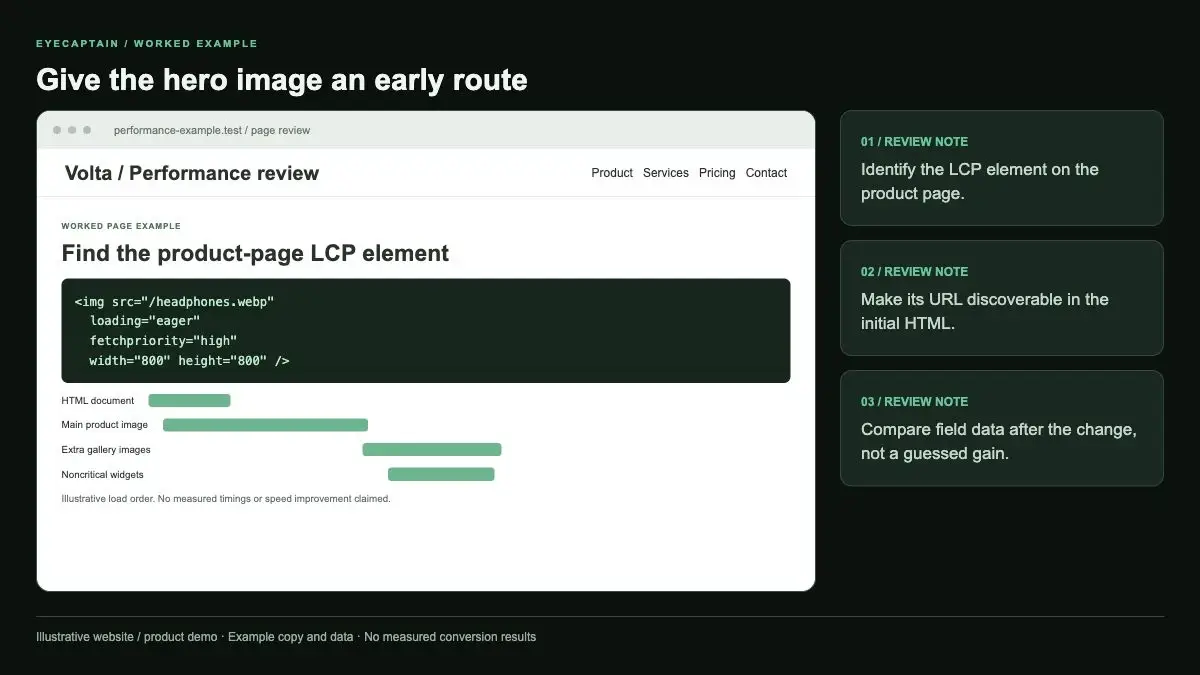
- Remove lazy loading from the main image. Many themes set loading="lazy" on every gallery image. Keep it on the thumbnails and later slides, not the first one.
- Add fetchpriority="high" to the main image tag. This tells the browser to download it ahead of less important resources.
- Put the image in the server-rendered HTML as a normal img element. If the theme sets it as a CSS background or inserts it with JavaScript, add a preload link in the head for that exact image URL.
- Serve the right size. Use srcset and sizes so a phone gets a phone-sized file. Most platform image CDNs can resize through URL parameters.
- Use a modern format. WebP and AVIF are usually much smaller than JPEG at similar quality, and most current browsers support them.
- Serve images from your own domain or CDN where possible, to avoid an extra connection to a third-party host. If you cannot, add a preconnect hint.
- Set width and height attributes so the space is reserved. This mainly helps layout stability, covered in our CLS guide.
Why do product image sliders hurt LCP?
Many carousel libraries hide all slides until their JavaScript downloads, runs and calculates the layout. The image may be downloaded already, but it cannot paint until the script finishes, which shows up as element render delay.
The fix is to make the first slide work without the script: visible by default in the HTML and CSS, with the carousel enhancing it once it loads. Avoid sliders that fade in the first image with an animation. Also question whether the gallery needs a heavy library at all. A simple main image with clickable thumbnails often does the job with less code, and on mobile a native horizontal scroll with CSS scroll snap can replace a script entirely.